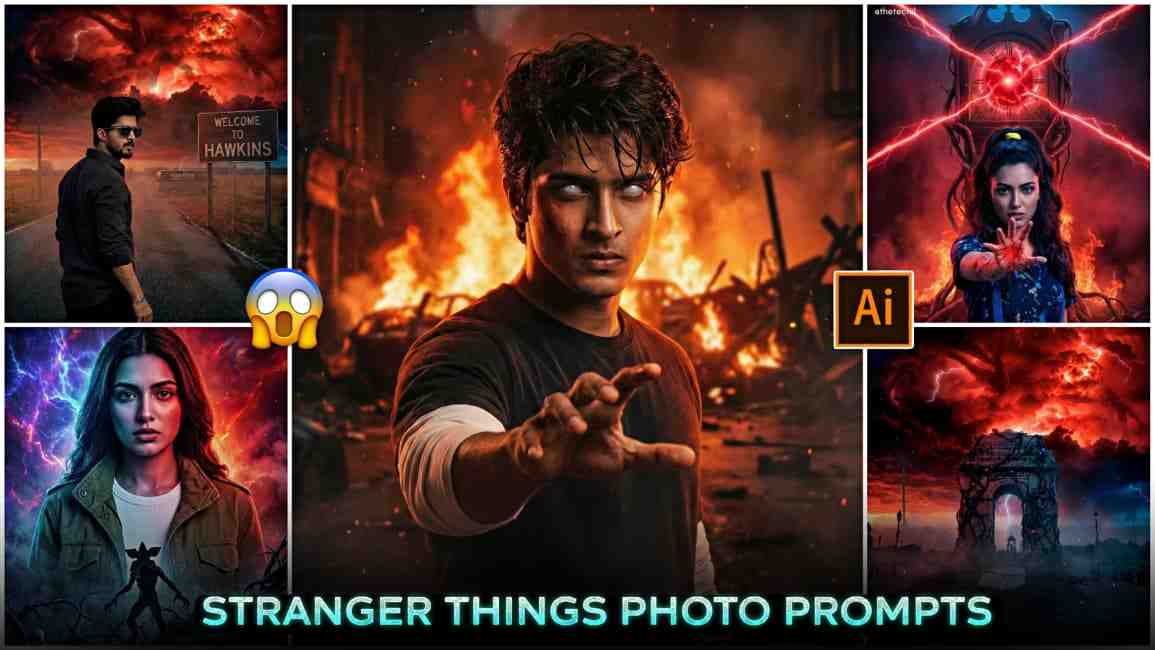
Stranger Things Style AI Photo Editing Prompts: In this article, I am going to share some amazing and trending Gemini prompts for creating Stranger Things–style AI photos. Stranger Things is a popular sci-fi horror series on Netflix, renowned for its 80s theme, dark visuals, supernatural elements, and characters such as Eleven and Hopper. The newly released season gained millions of views within a few days and was close to breaking Squid Game 2’s record. Because of this huge hype, many creators and users are making Stranger Things AI photos across social media. Seeing this trend, I decided to share the best prompts with you. Please read all the details below for a better understanding before creating your own edits.
Why do people prefer Google Gemini for image generation?
There are many reasons, but one major advantage stands out. With the introduction of the Nano Banana technology in Gemini AI, the app can now produce ultra-realistic images that almost perfectly match a person’s actual face. Earlier, users depended on tools like ChatGPT and then relied on face-swapping apps to make the output look real — but the results often appeared blurry, mismatched, or distorted. Now, Gemini can directly generate sharp, accurate, and natural-looking faces from a single reference photo, without any extra editing. This upgrade makes Gemini one of the most reliable and impressive AI tools for creating realistic images.
Best Stranger Things AI Photo Editing Prompts
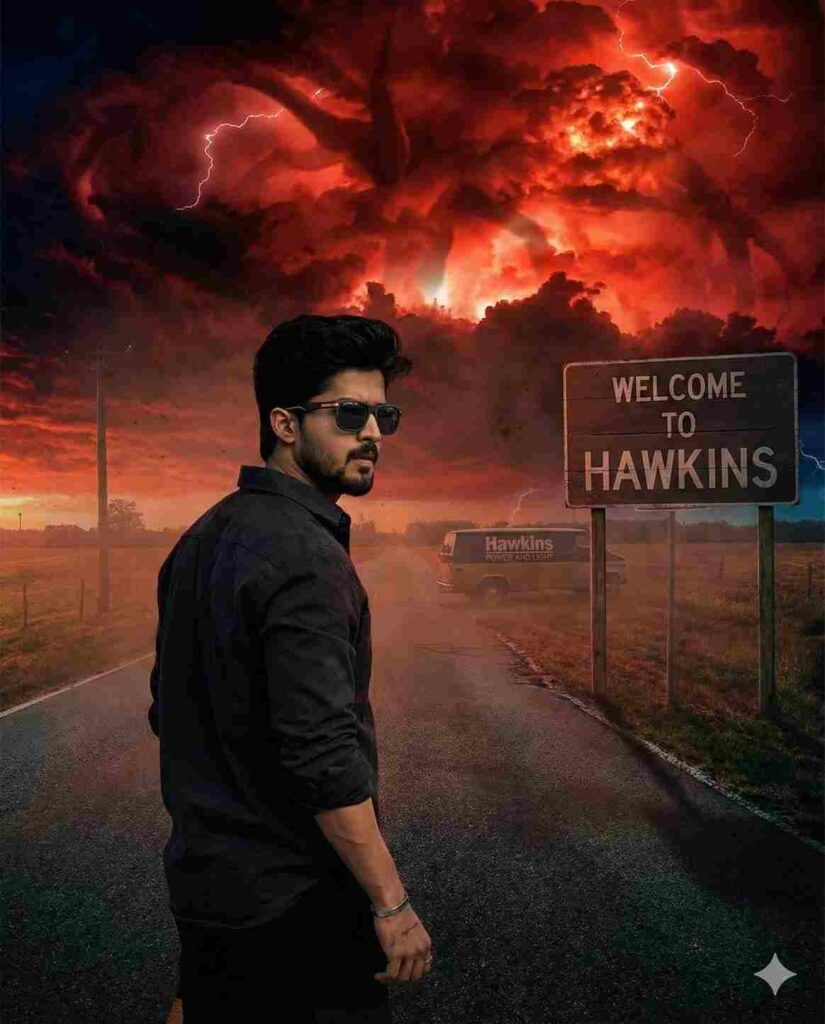
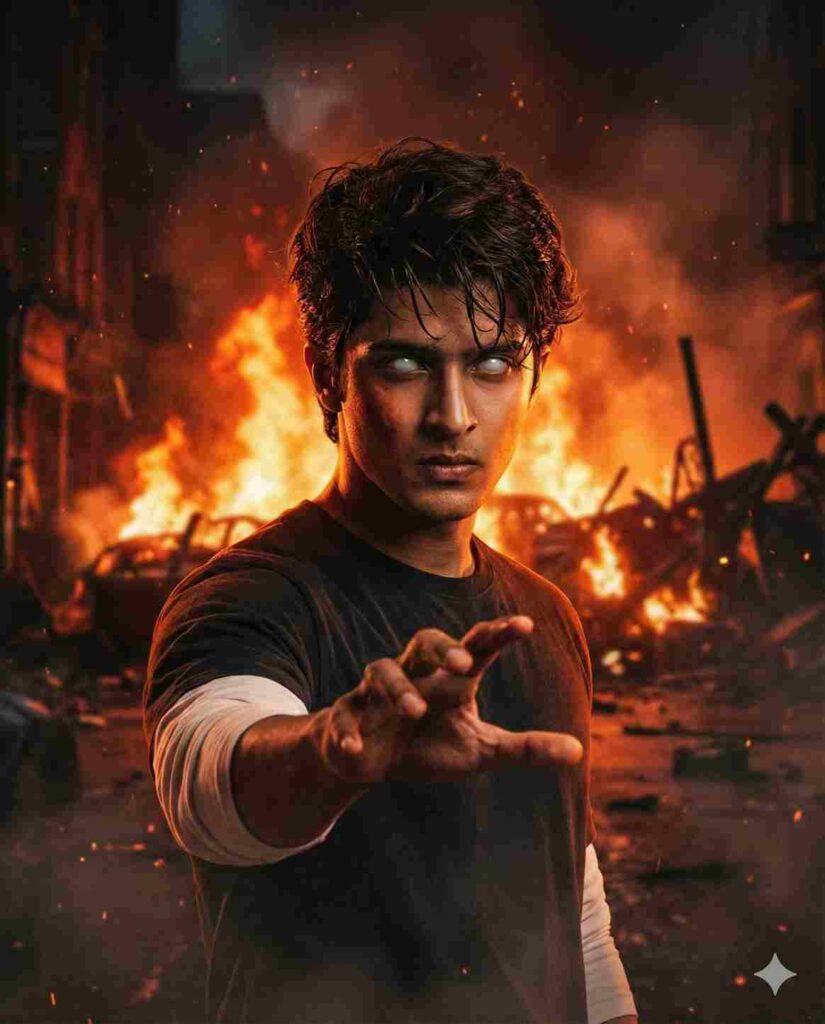
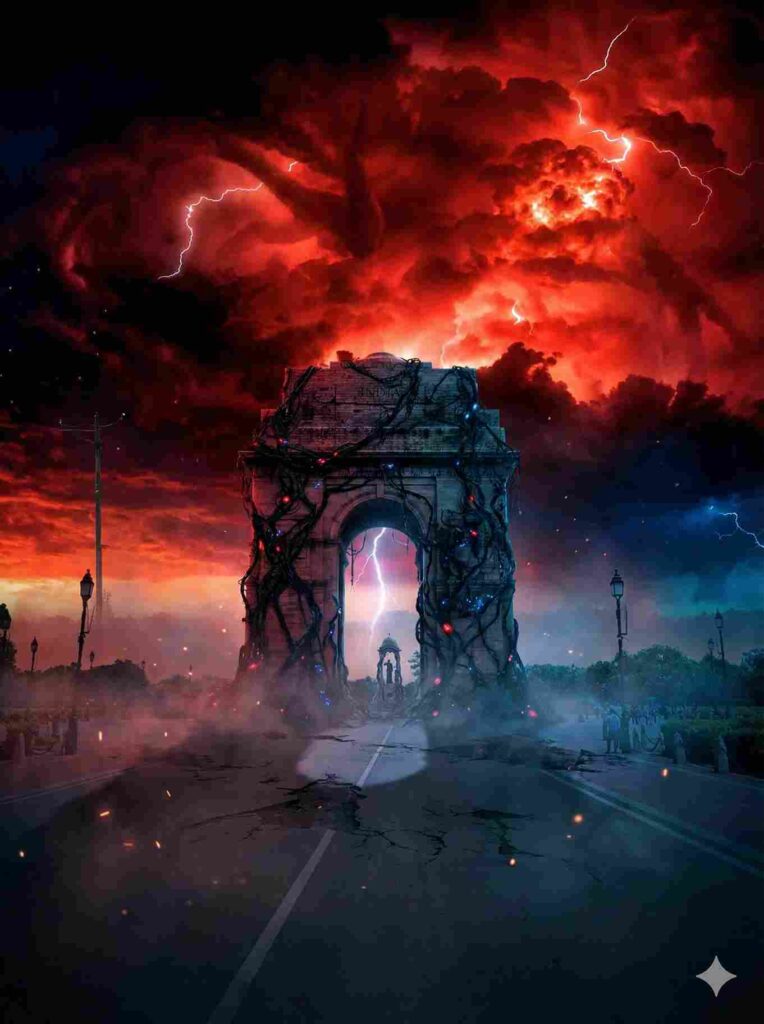
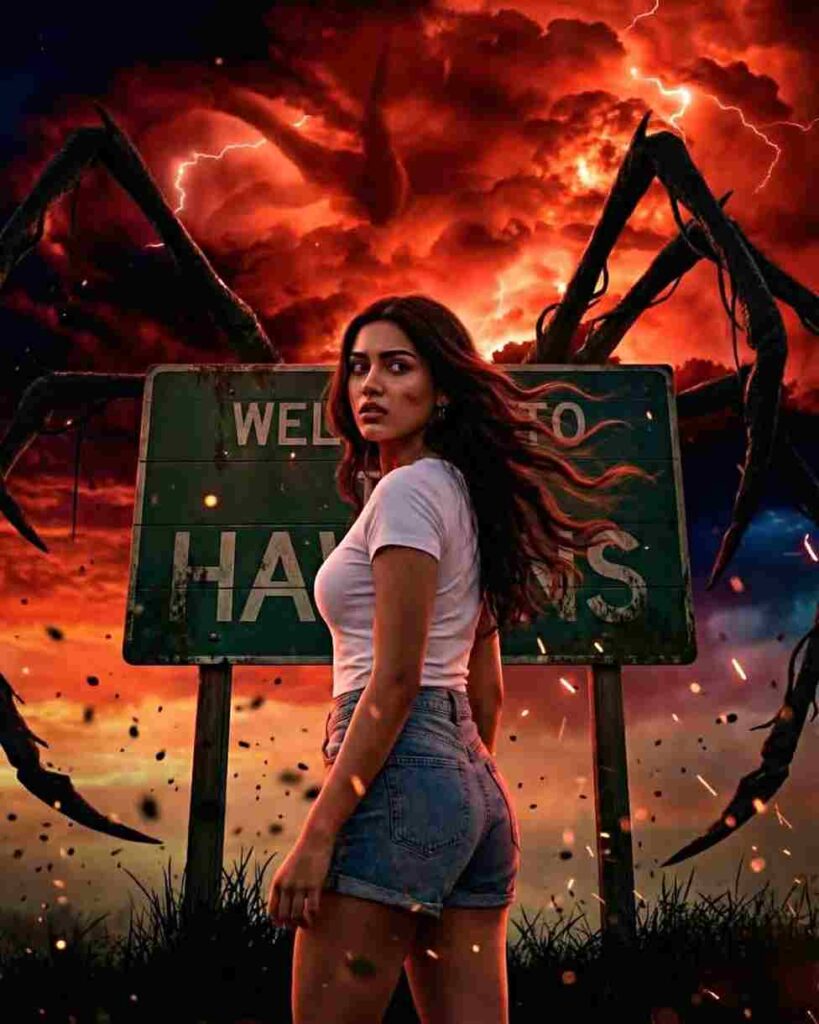
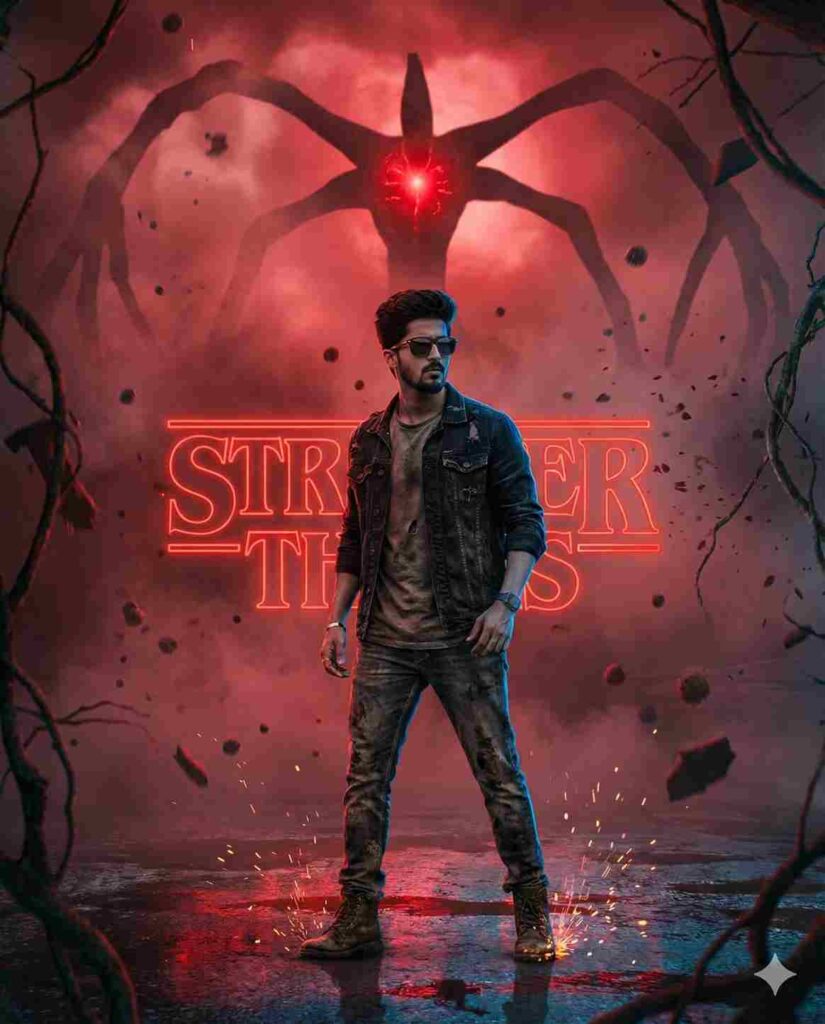
How to Create Stranger Things–Style AI Photos?
If you want to turn your normal photo into a dark, cinematic, Stranger Things–inspired AI portrait, the process is super easy. Just follow the steps below:
- Open Chrome and search for “Harish Edits.”
- Visit the website and explore the Stranger Things AI photo editing prompts section.
- Copy any prompt you like from the Stranger Things collection.
- Scroll down and click on “Create Your Image.”
- Sign in to Google Gemini, if required.
- Upload your real photo and paste the copied prompt into the prompt box.
- Tap the Generate button and wait a few seconds while Gemini creates your cinematic portrait.
- If the output needs improvement, hit Regenerate to refine the result.
- Once you’re happy with the look, download your final Stranger Things–style AI image.
Know the Person Behind Harish Edit
Hi everyone! I’m Harish Rawat, a content creator with over five years of experience in the editing and AI tools industry. Through my brand Harish Edits, I help creators improve their editing skills by sharing the best tips, tricks, and step-by-step guides. I also provide the latest updates on AI tools that make photo editing, video editing, and image generation easier for beginners as well as advanced users.
My goal is to simplify editing for everyone by explaining how to use new apps, trending features, and powerful AI tools that enter the market. Whether you want high-quality AI portraits, cinematic edits, or smart workflow tools, I share everything you need to stay ahead in the creative world.
You can follow my Instagram page @creative_editor_05 and subscribe to my YouTube channel harish_editor_05 for the latest editing tutorials, AI news, and creative ideas. Stay connected for more amazing updates!
Conclusion
Friends, the craze for Stranger Things–style AI photo editing is everywhere right now, so I thought this is the perfect time to share some simple and effective Gemini prompts. With these prompts, you can easily transform your ordinary photo into a dark, cinematic, and Stranger Things–inspired portrait. I’ve already added all the steps above to help you create your images without any confusion. If this guide helps you, let me know in the comments. And if you face any issues, I’m always here to help you.