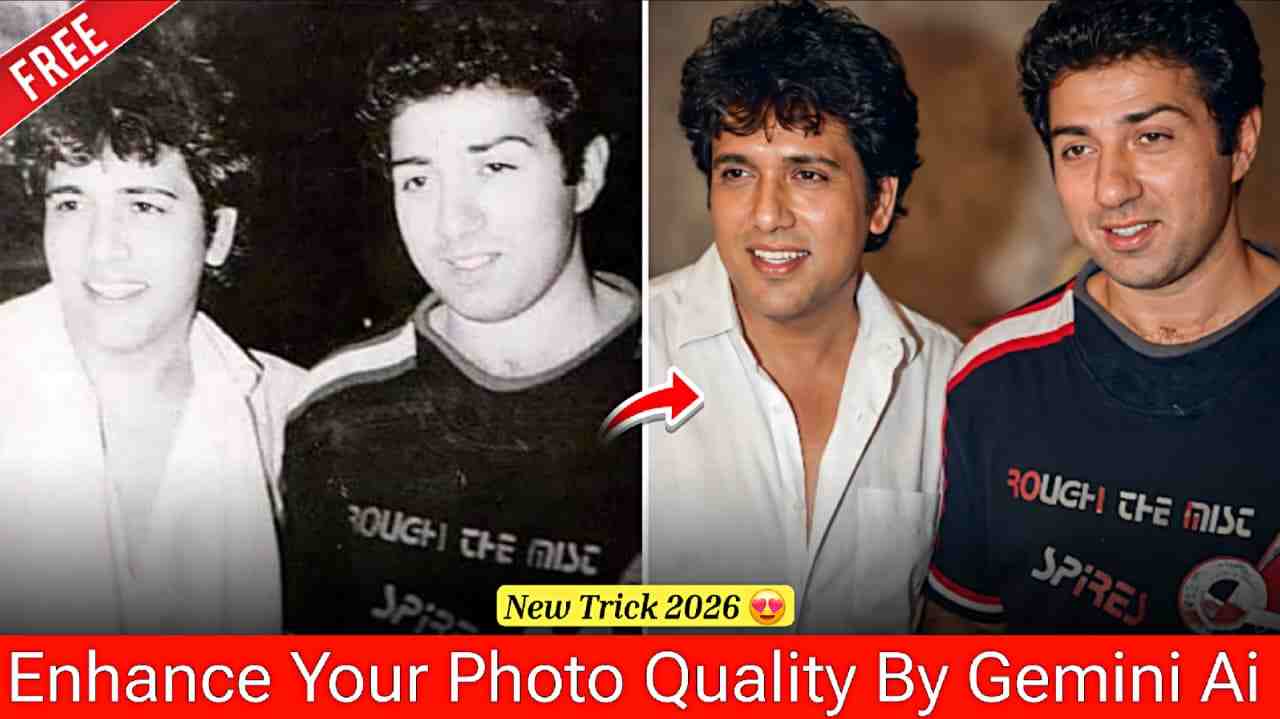
Friends, in this article I’m going to share some amazing Gemini AI prompts that help you easily enhance photo quality, fix blurry images, and restore old or damaged photos using just prompts. Many of us have old or damaged family photos that seem impossible to repair, but with these Gemini AI prompts you can transform them into clear, high-quality images and surprise your family with the results. The best part is you don’t need to install any app or watch ads—everything is possible for free using Gemini AI. So make sure to read the full article for a clear and complete understanding.
Gemini Pro Advanced AI for High-Quality Results
Gemini Pro is an advanced AI solution designed to deliver high-quality, accurate, and reliable results for a wide range of tasks. It offers powerful reasoning, better prompt understanding, and faster performance compared to standard AI versions. With Gemini Pro, users can enhance photo quality, restore old or damaged images, generate professional content, assist with coding, and perform deep research effortlessly. Its multimodal capabilities allow it to work smoothly with both text and images, making it especially useful for creators, professionals, and students. Overall, Gemini Pro helps users save time and achieve premium-level results with ease.
Gemini Prompts for enhancing Photo quality
Prompt for old or damaged Photos⬇️
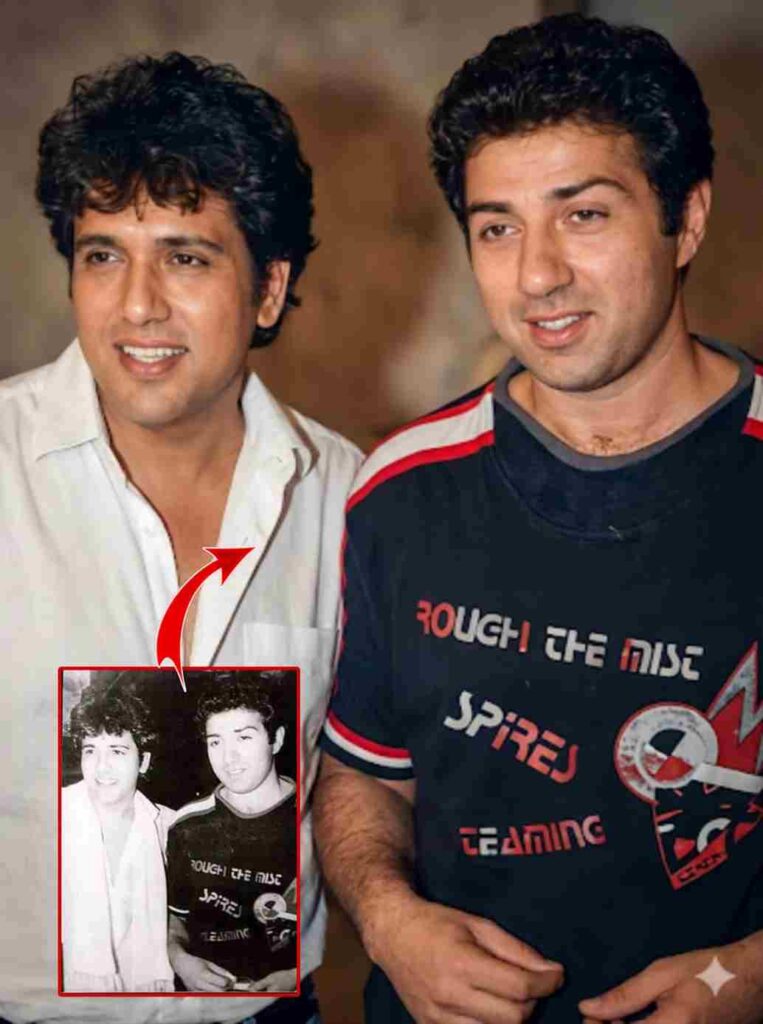
Restore this old photo and enhance it with modern, high-quality color tones similar to today's professional cameras. Add natural, vibrant, balanced colors with realistic skin tones and clean highlights. Improve lighting, contrast, and depth to match modern DSLR/ mirrorless camera output. Remove all scratches, noise, blur, and fadingPreserve the person's identity, facial features, expression, and historical clothing while giving the photo a fresh, newly-captured look. Increase resolution to 4K ultra-high quality with sharp, detailed textures. Avoid over-saturation, filters, or artificial plastic skin-keep everything natural and life like, don't change aspect ratio of the photo.
Prompt for Blurry Photos⬇️
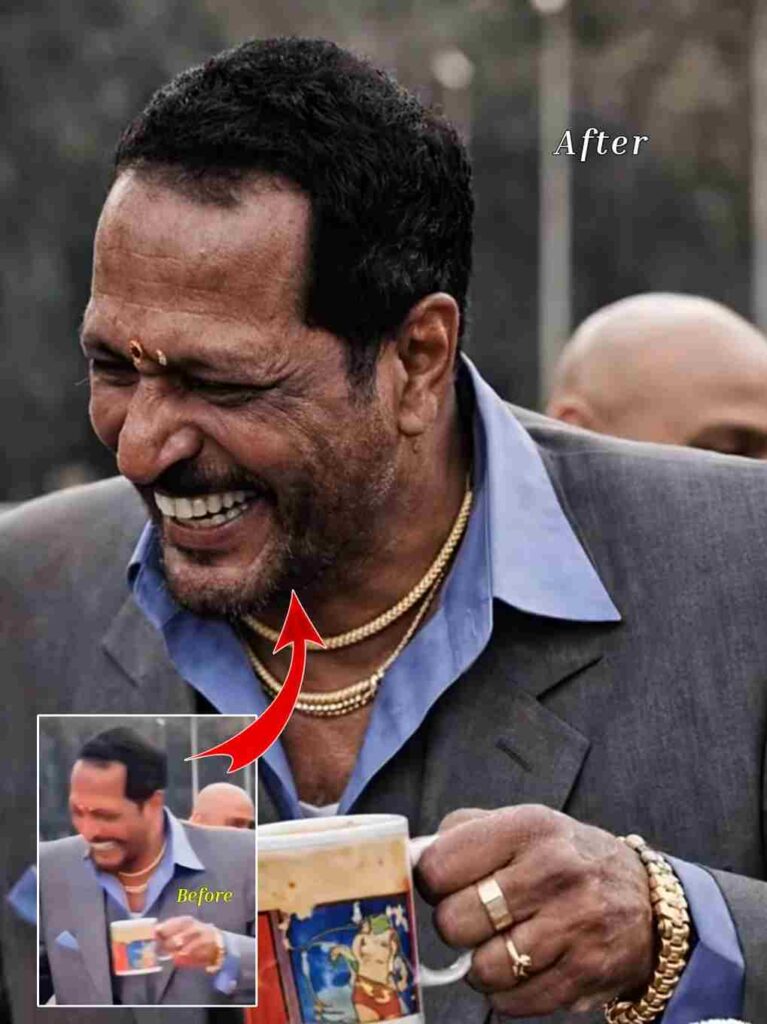
Enhance the portrait while strictly preserving the subject’s identity with accurate facial geometry. Do not change their expression or face shape. Only allow subtle feature cleanup without altering who they are. Keep the exact same background from the reference image. No replacements, no changes, no new objects, no layout shifts. The environment must look identical. The image must be recreated as if it was shot on a Sony A1, using an 85mm f1.4 lens, at f1.6, ISO 100, 1/200 shutter speed, cinematic shallow depth of field, perfect facial focus, and an editorial-neutral color profile. This Sony A1 + 85mm f1.4 setup is mandatory. The final image must clearly look like premium full-frame Sony A1 quality. Lighting must match the exact direction, angle, and mood of the reference photo. Upgrade the lighting into a cinematic, subject-focused style: soft directional light, warm highlights, cool shadows, deeper contrast, expanded dynamic range, micro-contrast boost, smooth gradations, and zero harsh shadows. Maintain neutral premium color tone, cinematic contrast curve, natural saturation, real skin texture (not plastic), and subtle film grain. No fake glow, no runway lighting, no oversmoothing. Render in 4K resolution, 10-bit color, cinematic editorial style, premium clarity, portrait crop, and keep the original environmental vibe untouched. Re-render the subject with improved realism, depth, texture, and lighting while keeping identity and background fully preserved. NEGATIVE INSTRUCTIONS: No new background. No background change. No overly dramatic lighting. No face morphing. No fake glow. No flat lighting. No over-smooth skin. no change pose same to same as it is.
How to Clear Blurry or Restore Damaged Photos
If you want to clear a blurry photo or restore a damaged image, just follow the simple steps below.
- Open Google or any browser and search for Harish Edits.
- Visit the official Harish Edits website and open the Photo Quality Enhance post.
- Copy any Gemini AI prompt you want to use for enhancing your photo.
- Click on the “Enhance Your Photo” button provided in the post.
- You will be redirected to Gemini AI; sign in with your Google account.
- Upload your photo, paste the copied prompt, and submit it.
- Within a few seconds, Gemini AI will generate an enhanced image.
- Download your high-quality photo and enjoy the result.
Conclusion
Friends, in this article I have explained how you can easily enhance any type of photo using Gemini AI. Whether your photo is old, damaged, or blurry, you can improve it in just one click by following the step-by-step method shared above. I hope you find this article helpful and easy to understand. If you face any problems or have questions, feel free to let me know in the comment box or contact me through my Instagram handle.