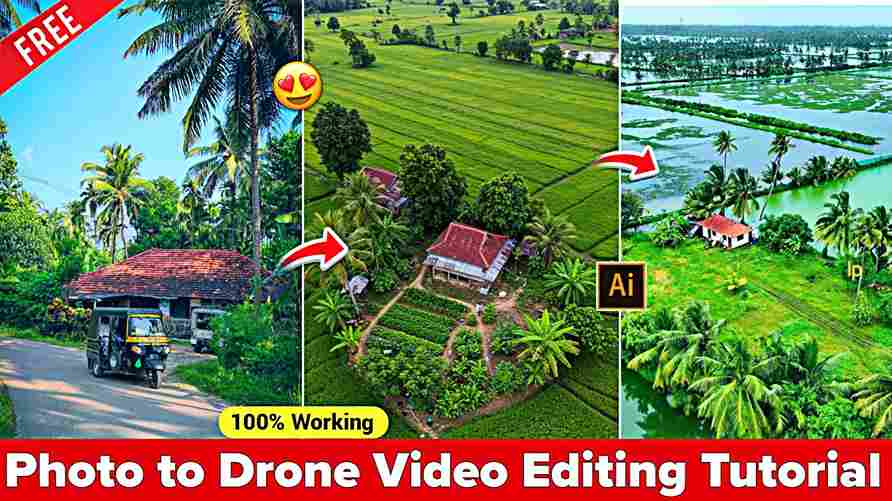
In this article, I’m going to share one of the best and easiest ways to create drone-like videos without spending any money. While many people invest a lot in buying high-quality drone cameras, with this method, you don’t need to spend even a single penny. By simply following the steps given below, you’ll be able to create realistic drone-style videos in multiple styles. Make sure to read the entire article carefully for a complete understanding.
How to Create a Drone Video from a Normal Picture?
Follow these simple steps to turn any photo into a realistic drone-style video:
- Visit the Website
- Go to Google and search for “Harish Edits.”
- Open the official Harish Edits website.
- Find the Drone Video Post
- On the homepage, look for the post titled “Image to Drone Video.”
- Tap or click on it to open the full guide.
- Copy the First Prompt
- Scroll down the page and find the first given prompt.
- Copy it and click the button below it.
- Use Google Gemini AI
- You’ll be redirected to Google Gemini AI.
- Upload your photo there.
- Paste the first prompt you copied earlier.
- Generate and save the new, enhanced image created by Gemini.
- Return to Harish Edits
- Go back to the Harish Edits website.
- Copy the second prompt provided.
- Click the “Create Drone Video” button.
- Use Flow AI to Generate the Video
- You’ll be redirected to the Flow AI website.
- Sign in or create an account if required.
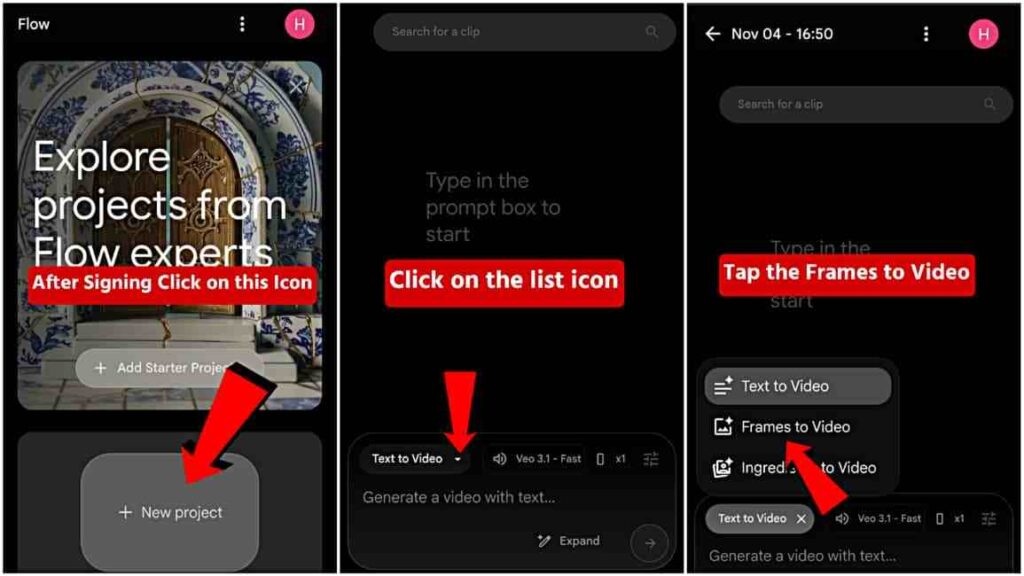
- Click the plus (+) icon to start a new project.
- Upload the image you generated in Gemini.
- Paste the second prompt you copied earlier.
- Download Your Drone Video
- Wait a few moments while Flow AI creates your video.
- Once it’s ready, download your drone-style video and enjoy your cinematic shot!
Required prompts to make a drone video.
Friends, there are two main prompts given below. You can use them as a guide, but if you have your own ideas, feel free to create your own prompt for generating a drone-shot image using Google Gemini. You can also modify the second prompt to add animation styles for the drone video to achieve smoother and more impressive results on Flow AI.
Prompt 1: Use this prompt to make a normal photo or to drone shot photo.
Convert this image into a realistic aerial drone shot without changing original photo, slightly expanded with natural surroundings that match the scene. Keep lighting, colors, and textures consistent no unrealistic or fantasy elements.
Prompt 2: Use this prompt on the Flow AI Website for Animation.
Animate this image as a smooth, realistic drone shoot
If you have good knowledge of prompt writing, you are free to enter your own prompt as needed.
How to sign in on the Flow AI website?
First, you will see the homepage where you need to sign in using any Google account, as there are currently no options to sign in or sign up with Facebook, Apple ID, or Gmail. So, you can only log in through your Google account.
After signing in with your Google account, click on the plus (+) icon. You will then see options like Text to Image and Frames to Video. Click on the “Frames to Video” option, select the aspect ratio that suits your needs, and enter your prompt.
Conlusion
Friends, in this article, I’ve shared details about a powerful AI tool for text-to-image and image-to-video generation that you can use completely for free. I’ve also explained step-by-step how to sign in with your Google account to start using this amazing AI tool easily. I hope this article helps you create stunning AI-generated visuals and drone-style videos effortlessly.